Set up the Creator Kit in UEFN, step by step
The Creator Kit (UI Popup – Like Save Follow, 3D Like Save Follow, 3D Social Profile) shares one folder, SupportCreator. You set it up once, and all three run together in one island.
Install in four steps
- 1Close UEFN and copy the SupportCreator folder into your project's Content folder.
- 2Open UEFN, right-click the folder and choose Resave All.
- 3Verse → Build Verse Code.
- 4Drag the popup device and the 3D displays into your island (SupportCreator)
Where each part lives
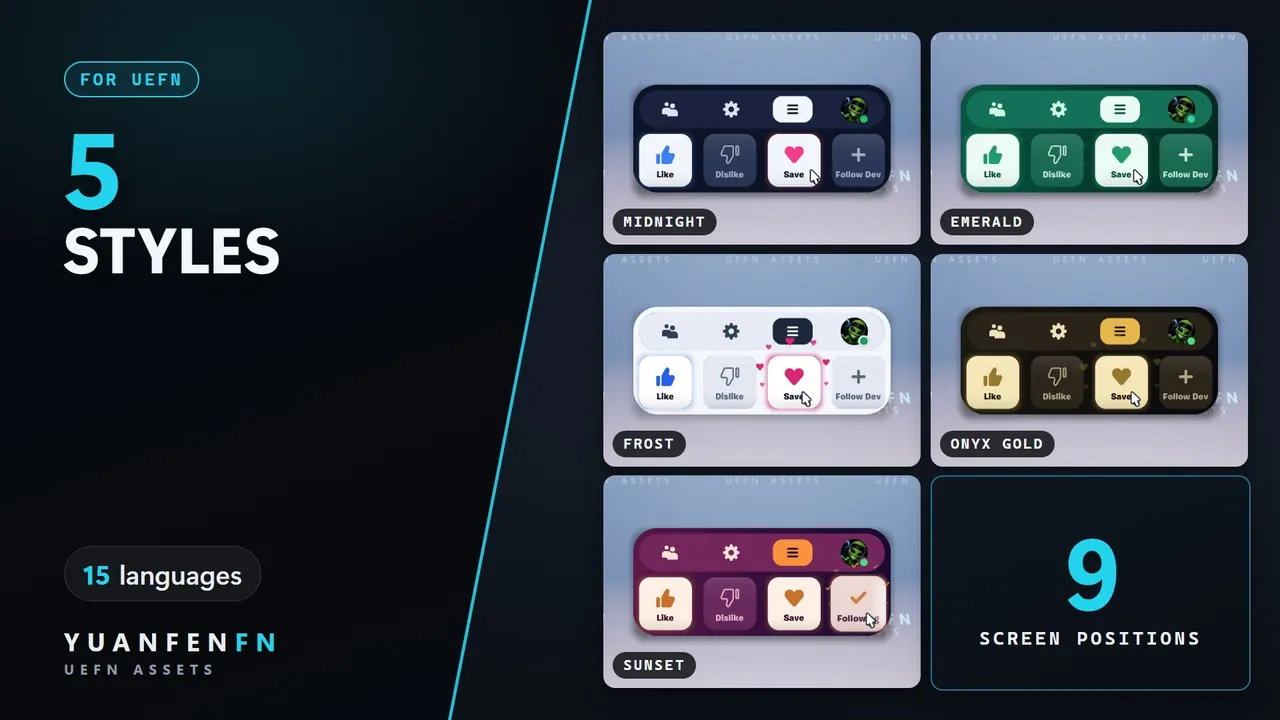
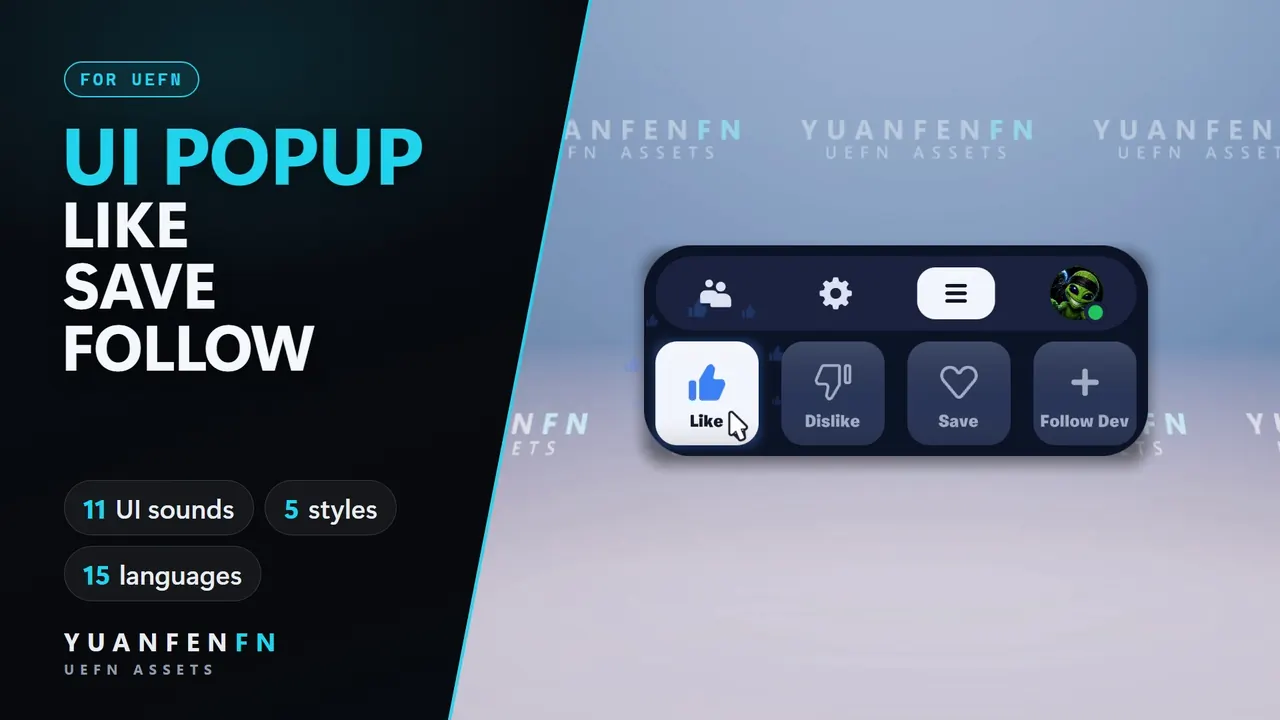
- UI popup: drag the popup device into your island (creator_engagement_popup), then pick style, logo and timing.
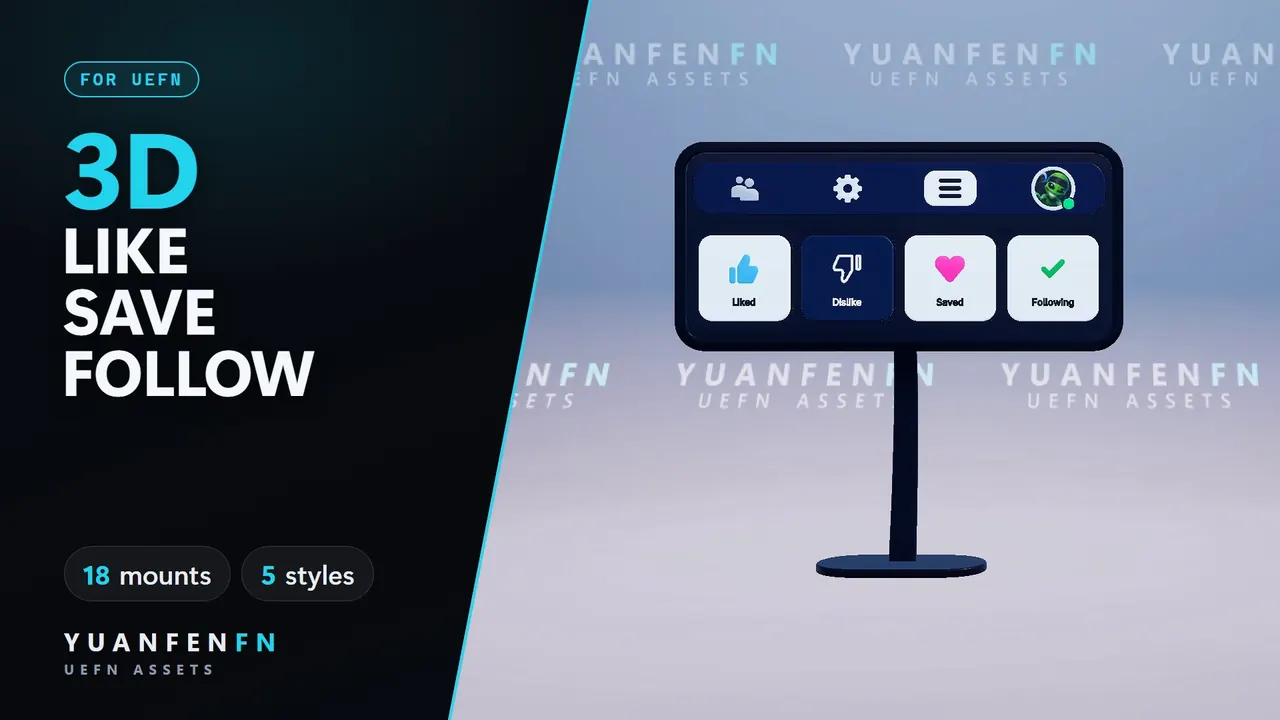
- 3D Like Save Follow: prefabs in SupportCreator/CreatorEngagementDisplay/Prefabs. Each mount is one prefab.
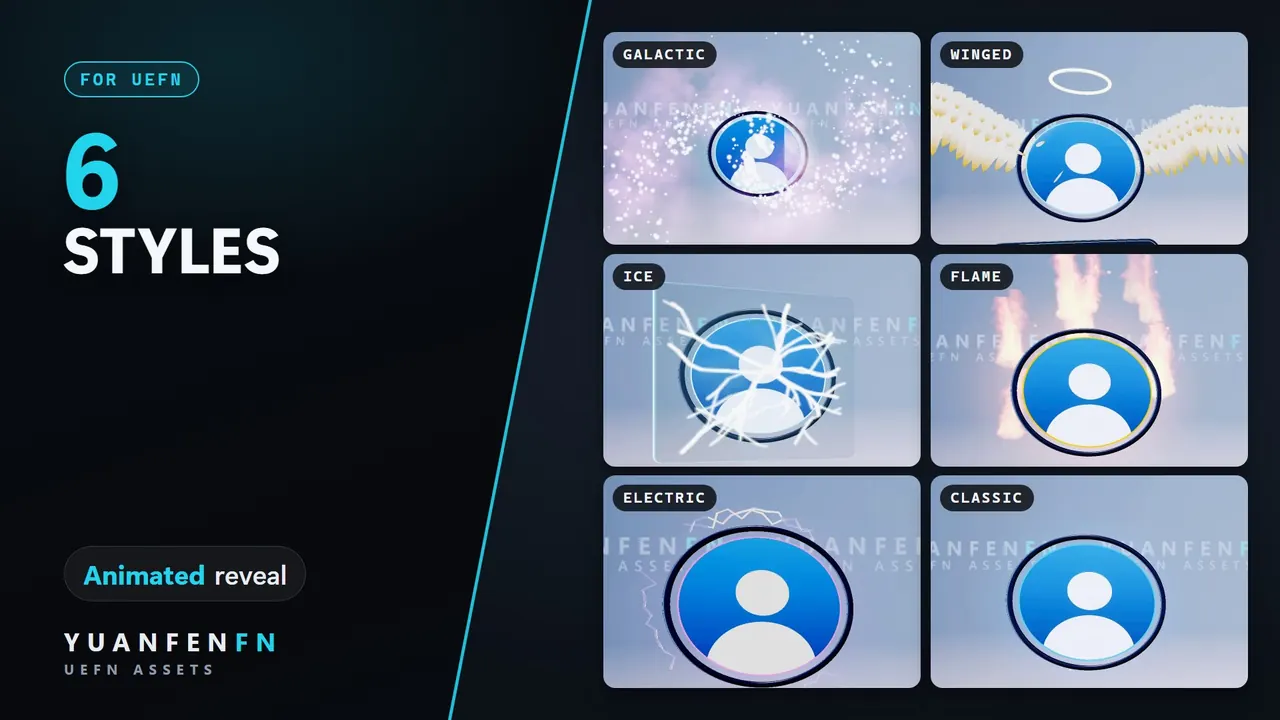
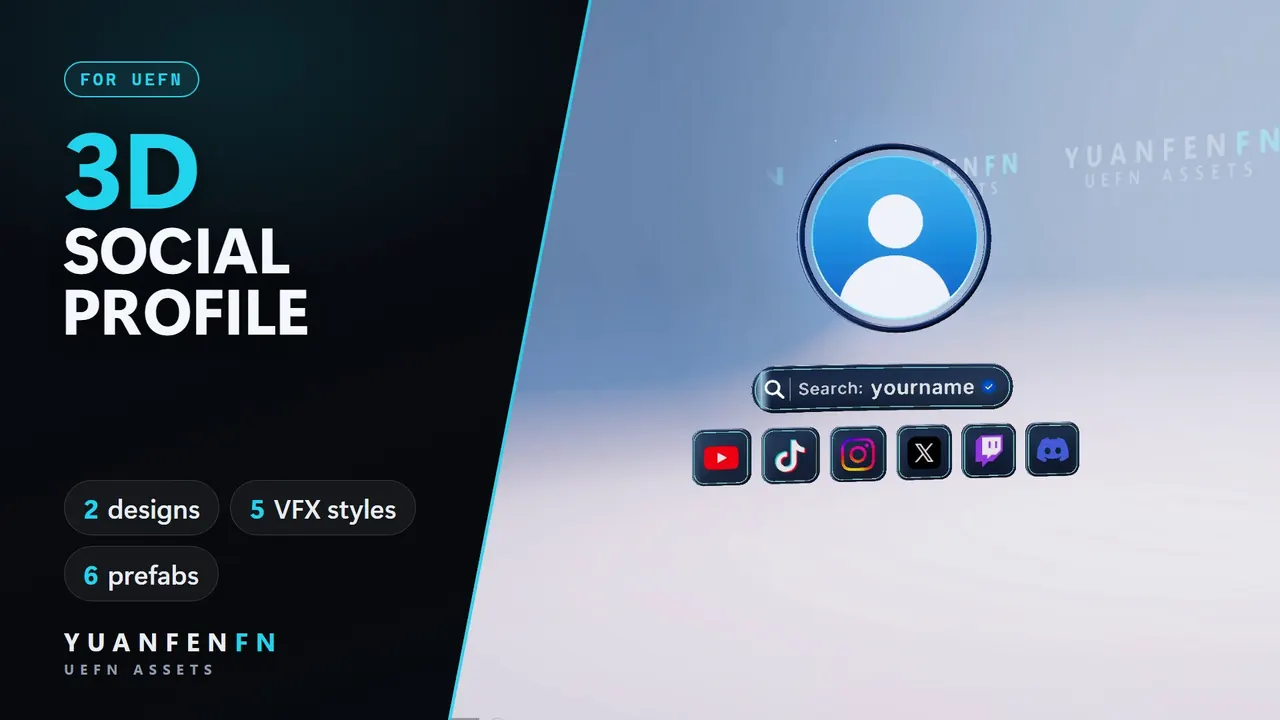
- 3D Social Profile: prefabs in SupportCreator/SocialProfileDisplay/Prefabs. Set name, picture and socials on the prefab.
If something does not show
- Settings missing after you dragged a prefab in? Click the prefab's top entry (PF_…) in the Outliner once.
- Copy the folder while UEFN is closed, then Resave All, then Build Verse Code, in this order.
- Each download has a README with the details for that asset.
Updates
New versions come through your original download link from the purchase email. Follow the README of the new version; in short: replace the folder with UEFN closed, then Resave All and Build Verse Code again.